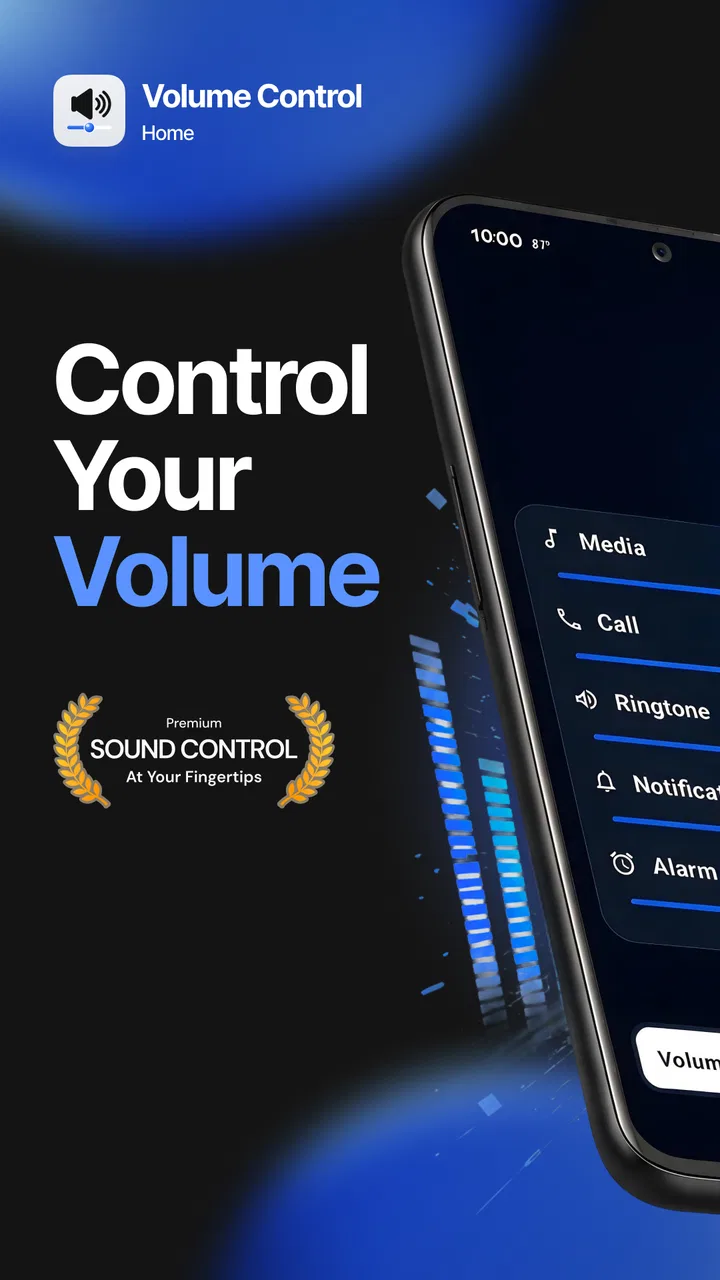
Volume Control Home
- 4.4
- Rating
- 500.00K
- Installs
- Free
- Price

 Analysis by App-foxy
I approached Volume Control Home as the kind of small utility that should solve an annoying problem quickly: getting more control over the sounds coming from an Android device. It belongs to the Music & Audio category, is free to use, and is made by Utility Apps Home. The basic idea is easy to understand, but the useful part is how it changes the way you reach volume controls during ordinary listening, watching, or gaming.
My first impression was that this is not trying to replace a music player, speaker, equalizer, or streaming service. It sits closer to the system controls and focuses on access. The app is designed to let you manage sound from the home screen and push media volume beyond the usual 100% point. That makes it interesting for people who regularly find themselves opening settings, pressing hardware buttons repeatedly, or struggling to reach a comfortable listening level in a noisy room.
The important expectation to set is that extra volume is not the same as extra audio quality. If a recording is quiet, a phone speaker is limited, or headphones are already struggling, increasing the level can make distortion or harshness more noticeable. I found the app most useful as a practical control layer, not as a magic repair tool for weak speakers. The real benefit is faster, more convenient volume management, with the added option of going past the normal media ceiling when the situation calls for it.
You May Also Like

 Blood Strike: 2.5 Anniversary
Blood Strike’s Loadouts Turn Every Drop Into a Tactical Gamble
A close look at Blood Strike’s custom loadouts: how fast access to signature weapons reshapes its battle royale rhythm, rewards preparation, and narrows the gap between fights.

 Pandora - Music & Podcasts
Pandora’s Music Is Easy to Start, but Harder to Recover
Pandora’s strength is its low-effort path from a seed to a station. Its weak spot is how much confidence it asks you to place in connection, setup, and quiet recovery.

 8 Ball Pool
 Is Built on Rivalries, Rematches, and Routine
A close look at the rivalries, rematches, shared routines, and unanswered safety questions that turn a quick pool match into a persistent mobile community.

 Samsung Music
’s Quiet Strength Is Playing What You Already Own
Its reach comes less from spectacle than from dependable access to a personal library. That simplicity is both the app’s strongest retention engine and its ceiling.

 AccuWeather: Weather Radar
AccuWeather Review: A Quick, Clear Forecast for Everyday Decisions
For everyday plans, the best forecast is the one you can understand quickly. AccuWeather makes rain timing, radar, and local conditions easy to act on, with a few trade-offs.

 Hill Climb Racing
Why Hill Climb Racing Still Turns Crashes Into One More Run
A tiny car, a bumpy hill and one more upgrade: Hill Climb Racing keeps resurfacing because its simple chaos makes every near-miss feel personal.
More From Our News Desk
View All News


Getting started without overthinking the setup
I’d keep the first launch simple: check which media control is available, then try it with audio you already know rather than judging it through an unfamiliar track. That gives you a dependable baseline and helps you decide whether the home-screen route actually saves effort in your routine. Once that feels clear, the next section looks at how to adjust deliberately and avoid confusing extra loudness with better sound.
What the first launch is really for
On a first run, I would begin by treating the app as a home-screen control rather than immediately chasing the highest possible volume. The sensible path is to open it, look at the available controls, and identify how it connects with the device’s regular media level. Then I would play something familiar, such as a podcast or a song I know well, and make a small adjustment while listening.
That familiar test matters because it gives you a reference point. A new track may simply be mastered differently, while a familiar voice or chorus makes changes easier to judge. I recommend testing at a moderate level first, then increasing it only when the normal system range genuinely feels insufficient. This avoids the common mistake of assuming that the most noticeable change is automatically the best one.
The app runs on Android devices using version 9 or later, so compatibility is reasonably broad for people with supported phones and tablets. It is rated for Everyone, which fits its straightforward purpose. The current release is version 1.5.12, and the app has reached over a hundred thousand installs, with a 4.6 average from around a thousand ratings. Those figures suggest that it has found a practical audience, although popularity should not replace checking how your own speaker or headphones behave.
Putting the control where you actually need it
The home-screen focus is more important than it may sound. Volume adjustments are often needed while doing something else: starting a video, answering a call through a headset, listening to spoken directions, or switching from quiet indoor use to a louder environment. A control that is easy to reach can be more useful than a larger settings panel that requires several taps.
I would place the app’s control where it makes sense for your routine rather than hiding it among rarely used icons. If you listen mostly at a desk, a nearby home-screen position can make sense. If you use the phone while moving around the house, a location that is easy to reach one-handed is more practical. The best arrangement is the one that reduces interruption, because repeatedly leaving the current app is exactly the friction this utility is meant to remove.
One useful habit is to test the control with more than one type of media. Speech, music, game audio, and video sound can react differently when the level is raised. Speech may become easier to follow, while music can expose clipping sooner. Testing several sources helps you learn where the setting is comfortable instead of assuming one successful adjustment applies everywhere.
The first meaningful success
For me, the first real success would be simple: start audio in another app, use the home-screen control, and reach a comfortable level without opening the full system settings. That is the moment when the app proves its value. The extra-volume function is a second step, useful when regular adjustment is no longer enough, but it should be approached gradually.
A realistic example is watching a video in a kitchen while water is running or other people are talking nearby. The phone’s standard maximum may leave speech difficult to follow. Instead of abandoning the video or repeatedly pressing a button, I could use the control from the home screen and raise the media level carefully. Once the dialogue is clear, I would stop there rather than continuing upward simply because the app allows it.
Another everyday case is a quiet podcast recorded at a lower level than the music you normally play. Moving between apps can make the difference obvious, and a quick control is convenient when you do not want to adjust every source individually. This does not normalize the recording or improve its production, but it can make a short listening session less frustrating.
There is also a useful distinction between media volume and other sounds on the device. The app’s purpose is centered on media control, so I would not assume that changing a song or video level automatically changes every alert, ringtone, alarm, or call setting. When a user expects one slider to govern the entire phone, confusion is likely. Checking what is playing while making the adjustment is the easiest way to understand the result.
Understanding the controls and avoiding common mistakes
I’d think of the controls as a way to make small, reversible changes, not as a reason to leave every source turned up. A quiet podcast, a phone speaker, and headphones can each respond differently, so I’d make adjustments while the intended audio is playing and pause when the sound turns harsh or tiring. That practical approach also makes it easier to spot when the issue is the recording or output device rather than the volume setting.
Why “past 100%” needs restraint
The headline feature is the ability to boost media volume beyond the standard maximum. That can be helpful, but it has a clear trade-off. Once a device or audio source is already near its normal limit, additional loudness may expose the weaknesses of the speaker, headphones, or recording. The result can be brittle sound, buzzing, or fatigue rather than a cleaner listening experience.
I would use the boost as a short-term solution, not as a permanent default. For spoken content, a small increase may make words easier to catch. For music, especially tracks with strong high frequencies, a lower setting may sound more pleasant even if it is technically quieter. Headphones also deserve extra care because they place the sound close to your ears. If the level feels aggressive, lowering it is the right response, not trying to adapt.
This is one of the app’s less obvious lessons: the useful setting is often below the maximum available setting. The point of having more range is flexibility, not a requirement to use all of it. I would treat the extra range like a reserve for difficult situations, such as a quiet recording or a noisy room, and return to a safer everyday level afterward.
When the result does not match your expectation
A common source of confusion is changing the level while the wrong audio source is active. If no music or video is playing, the adjustment may not give an obvious result. If a headset is connected, its own controls or internal limits may affect what you hear. Bluetooth equipment can also behave differently from the phone’s built-in speaker, so I would test the app with the output device I actually plan to use.
Another point is that the app cannot turn a poor recording into a detailed one. Raising a muffled voice may make the muffling louder. Increasing a compressed game soundtrack can make effects more tiring without making important cues clearer. In those cases, the better answer may be a player with audio-specific controls, a different recording, or a better-positioned speaker. Volume Control Home is strongest when the main problem is access to level, not the character of the sound itself.
I would also avoid making rapid, large changes while wearing headphones. A gradual adjustment gives your ears time to register the difference and makes it easier to stop at a comfortable point. This is especially important when switching from a quiet podcast to a loud music track, because the same slider position may not feel equally comfortable across different content.
Where it fits beside ordinary alternatives
Android’s built-in volume buttons remain the simplest option for many people. They are immediate, familiar, and do not require a home-screen control. If you only change volume occasionally, the system controls may be all you need. The advantage here appears when you want a more visible or convenient route, particularly when you are already working from the home screen or prefer tapping a control instead of searching for physical buttons.
Traditional audio apps can offer more specialized tools, such as equalization or playback adjustments. Those are better choices when your problem is bass balance, treble, loudness differences between tracks, or the sound of a particular player. Volume Control Home takes a narrower approach. I see that as both a strength and a limitation: it is easier to understand because it focuses on volume access, but it will not replace a full audio-processing app for users who want detailed sound shaping.
Hardware solutions can also be better in some situations. A portable speaker, wired headphones with a reliable inline control, or a Bluetooth device with its own volume management may deliver a more consistent experience. If your phone speaker is physically weak or damaged, software control has a ceiling imposed by the hardware. The app can help you reach available loudness more conveniently, but it cannot change the physical quality of the speaker.
Small workflows that make it more useful
One workflow I found sensible is to use the app before starting a listening session rather than adjusting constantly during it. I would open the intended media, set a comfortable level with the normal range, and reserve the boost for a specific section that is unusually quiet. This reduces the temptation to leave the phone at an unnecessarily high setting for the entire session.
A second workflow is to test a new output device at a low level. Connect the headphones or speaker, play familiar audio, and adjust gradually. That gives you a personal reference for how the control behaves with that device. It also prevents the assumption that a setting that worked on the phone speaker will feel the same through headphones.
A third useful habit is to keep the home-screen control near the apps you use for listening. This is more than cosmetic organization. It turns the utility into part of a repeatable routine: start content, reach the control, make a small change, and return to listening. If the control is buried several screens away, the main convenience disappears and the ordinary system buttons may be faster.
These workflows also show who should skip the app. If you want a full equalizer, automatic normalization, detailed profiles, recording tools, or a replacement music player, this is probably too focused. It is also not the ideal answer for someone whose main concern is hearing protection, because the ability to go louder should be handled cautiously. People who rarely adjust media volume may gain little from adding another utility to their home screen.
My recommendation after regular use
I would recommend Volume Control Home to someone who repeatedly needs quicker media-volume access or occasionally finds the normal ceiling too restrictive. Its appeal is practical rather than flashy. The app’s free price makes it easy to try, and the straightforward purpose means you can decide quickly whether it fits your routine. I especially see value for people who listen to quiet spoken content, move between different environments, or dislike leaving the current activity to reach system controls.
My recommendation comes with a clear condition: use the extra range thoughtfully. The best experience is not necessarily the loudest one, and the app cannot compensate for weak hardware, poor recordings, or a need for advanced sound shaping. I would start with a familiar audio sample, keep adjustments gradual, and lower the level when the sound becomes sharp or tiring. That approach turns the boost into a useful option instead of an invitation to push everything to the limit.
For a first-time user, the path is reassuringly short. Install it on a supported Android device, open it, place its control where you can reach it, start familiar media, and make one careful adjustment. If that saves you time or makes quiet content easier to follow, the app has already earned its place. If your needs go beyond volume access, an equalizer, a better audio player, or improved hardware may be the more suitable next step.
Utility Apps Home has kept the concept focused, and that focus is what I appreciate most. With a 4.6 average and more than a hundred thousand installs, it is clearly being used as a practical audio helper rather than a complete entertainment platform. I would not describe it as essential for every phone, but for the right listener it removes a small, recurring annoyance. If your goal is convenient control with occasional extra headroom, this is a sensible free tool; if your goal is better sound design, look elsewhere.
FAQs for Volume Control Home
01What is Volume Control Home and what does it do?
Volume Control Home is an Android utility designed to make managing your device’s sound levels more convenient. Instead of repeatedly opening system settings, it provides quicker access to volume controls from a home-screen shortcut or interface, depending on the device and version. It can be useful when you frequently adjust media, ringtone, notification, alarm, or call volume throughout the day.
02Which volume settings can I adjust with Volume Control Home?
The available controls may depend on your Android version, phone manufacturer, and the permissions granted to the app. In general, the application is intended to provide access to common audio categories such as media, ringtone, notifications, alarms, and voice calls. Some devices combine or restrict certain streams, so not every phone will display exactly the same controls or offer identical behavior.
03Does Volume Control Home work on every Android phone?
The app should work on many Android devices, but compatibility is not guaranteed across every model. Manufacturers often customize the volume system, and newer Android releases may limit how third-party apps interact with audio settings. Before downloading, check the application’s supported Android version, recent user feedback, and whether your device allows the required settings or shortcut functions.
04Does Volume Control Home require special permissions?
Basic volume adjustment may work with limited permissions, but some features can require access to system settings, notifications, accessibility services, or the ability to display controls over other applications. The exact requirements depend on the version installed and your phone’s software. Review each permission request carefully and only enable access that is necessary for the feature you intend to use.
05Is Volume Control Home free, and is it safe to install?
Availability, advertising, and optional paid features can vary by store listing and app version, so check the current download page for accurate pricing information. For safety, install the application from an official Android marketplace, verify the developer name, read recent reviews, and review its privacy policy. Avoid modified APK files, and uninstall the app if it requests unrelated or excessive access.
Pros
- Quickly adjust media
- ringtone
- alarm
- and notification volumes.
- Home screen access makes frequent volume changes more convenient.
- Useful for phones with awkward or unreliable physical volume buttons.
- Simple controls are easy to understand for most Android users.
- Can help reduce accidental changes made through the device’s side buttons.
Cons
- Availability and features may vary between Android versions and devices.
- May require accessibility or system permissions for full functionality.
- Extra home screen controls can make the interface feel cluttered.
- It may duplicate volume tools already included in your phone’s quick settings.
- Some options may not work consistently with manufacturer-specific audio settings.

Volume Control Home
Gallery